Switch to dark mode or change the map style
On your Profile page, tap the cog icon, then Color appearance, and choose Dark, Light or Default. For the map, tap the cog icon on the map.
The app and the map each have their own setting, so you can, for example, use the app in dark mode with a satellite map.
Switch between light and dark mode
- On the start screen, go to your Profile page.
- Tap Settings, the cog icon in the top right corner.
- Tap Color appearance.
- Choose Dark, Light or Default. Default follows your phone's system setting.
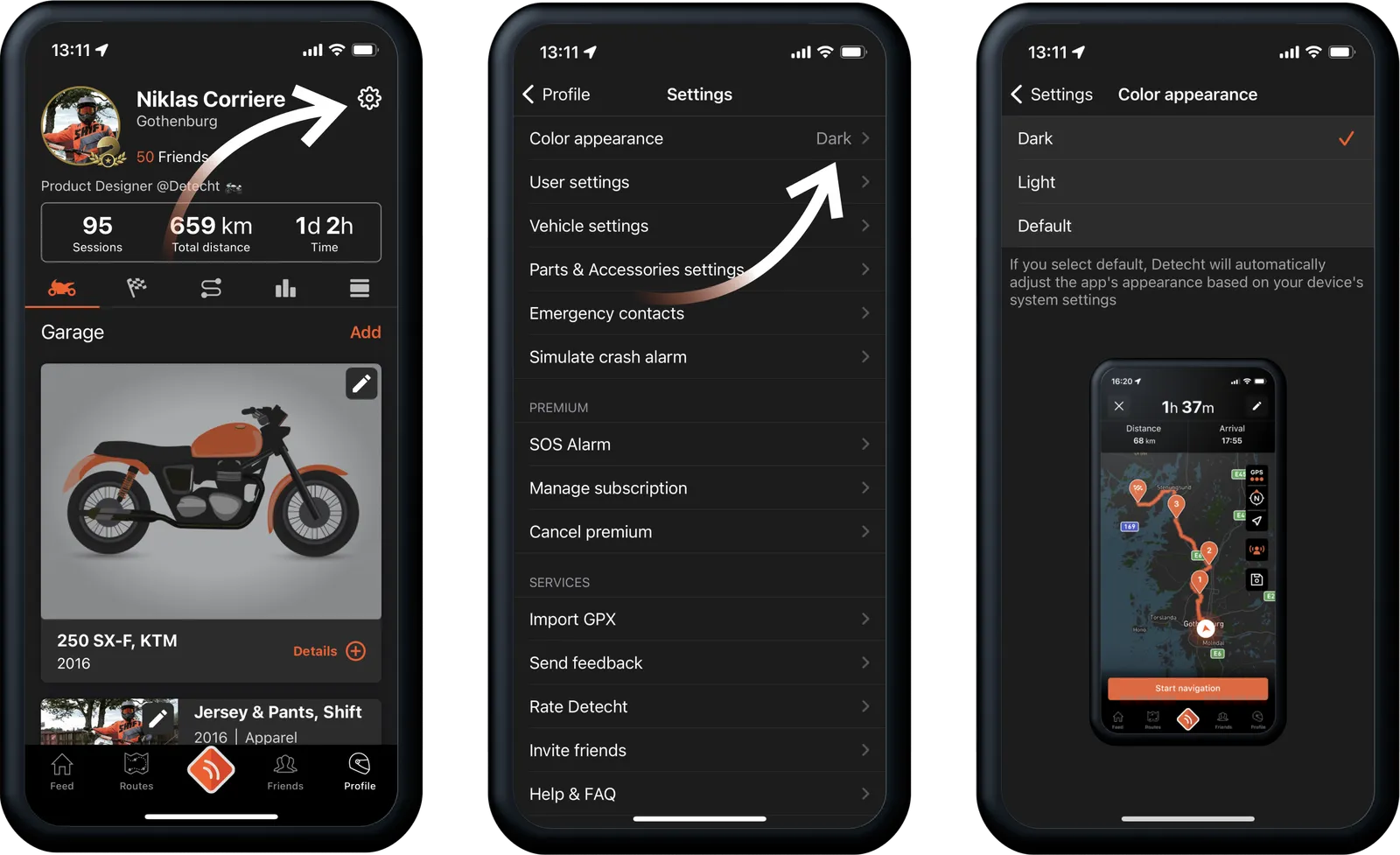
Light mode is best for riding in daytime sunshine, as it reduces glare on the screen. Dark mode makes the details that matter most easier to see when you ride in the dark, without blinding you.
Change the map style
- On the start screen, tap the cog icon on the right side of the map. Map settings opens.
- Under Map type, choose a style.
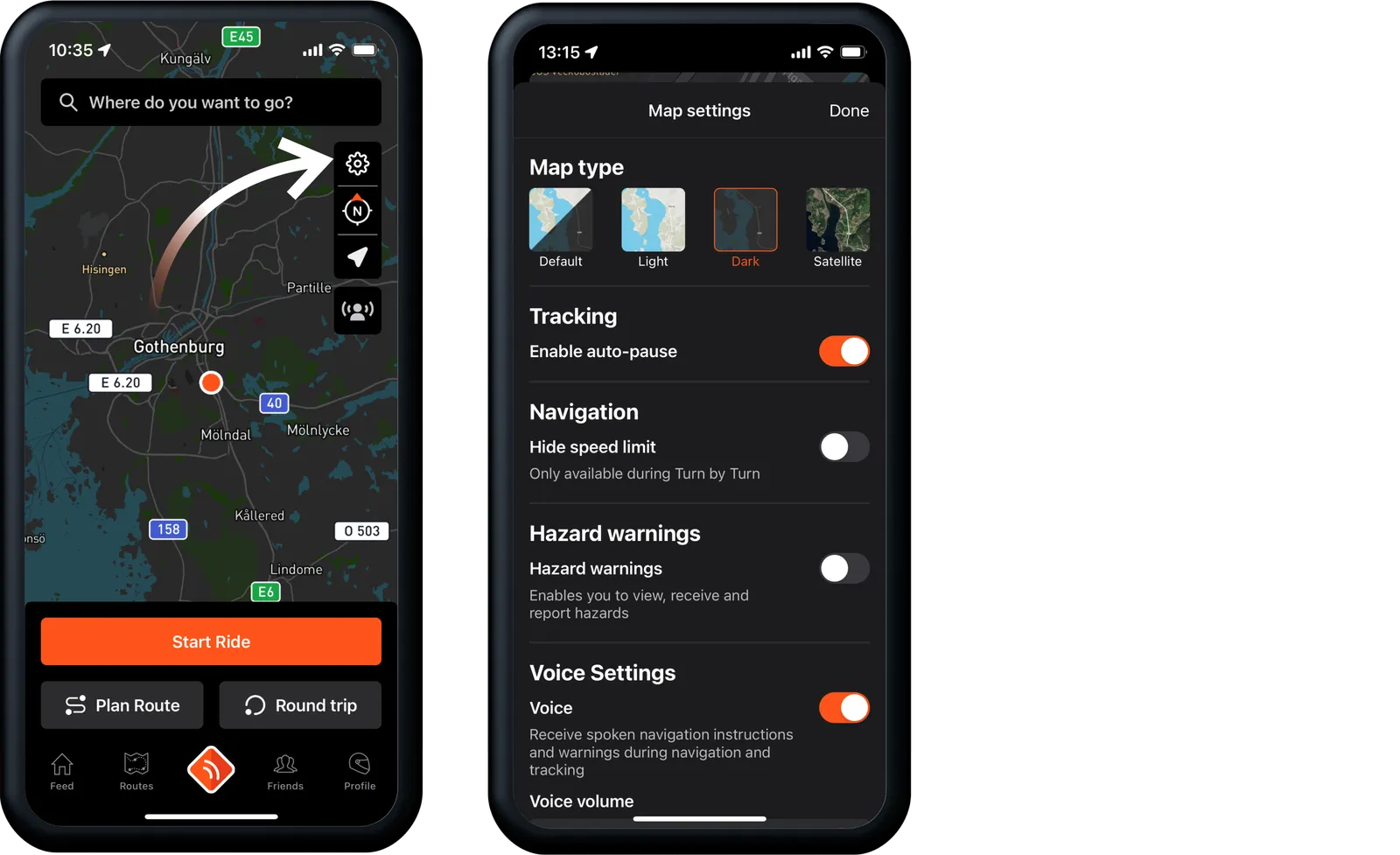
The map types are:
- Default: follows the app's light or dark mode.
- Light: best in daytime sunshine, with less glare.
- Dark: shows the details that matter most in the dark, without blinding you.
- Satellite: a detailed view of the landscape ahead.
Updated