Import or export a GPX route
Open the GPX file on your phone and choose Detecht. To export, open a saved route, tap Share, then Export GPX.
Import routes you planned in another tool, or past favorites saved as GPX files. Once imported, you can edit a route as if you planned it in Detecht, navigate it or share it with other riders.
Import a GPX file from your phone
- Open the GPX file from anywhere on your phone: your files, an email or your browser.
- Choose Detecht in the list of apps that appears.
- Detecht opens and imports the file.
Import a GPX file in the app
-
Tap Routes at the bottom of the screen.
-
Tap the GPX import button in the top right corner.

-
Find and choose the GPX file in your phone's file browser.
-
Detecht imports the file and opens it.
After the import
A GPX file holds either a route or a track.
- A route opens on the map, ready to edit, save to your planned routes or navigate.
- A track opens Track Options, where you choose how to use it.
For a track, choose one of:
- Follow Track Line: shows the track as a fixed line on the map to follow. You can't edit it or get turn-by-turn directions.
- Convert to Route: turns the track into a route you can edit, save and navigate with turn-by-turn directions.

Export a route as a GPX file
You can export any saved route in Detecht, your own and other riders'. Save the route first if you haven't.
-
Open the saved route.
-
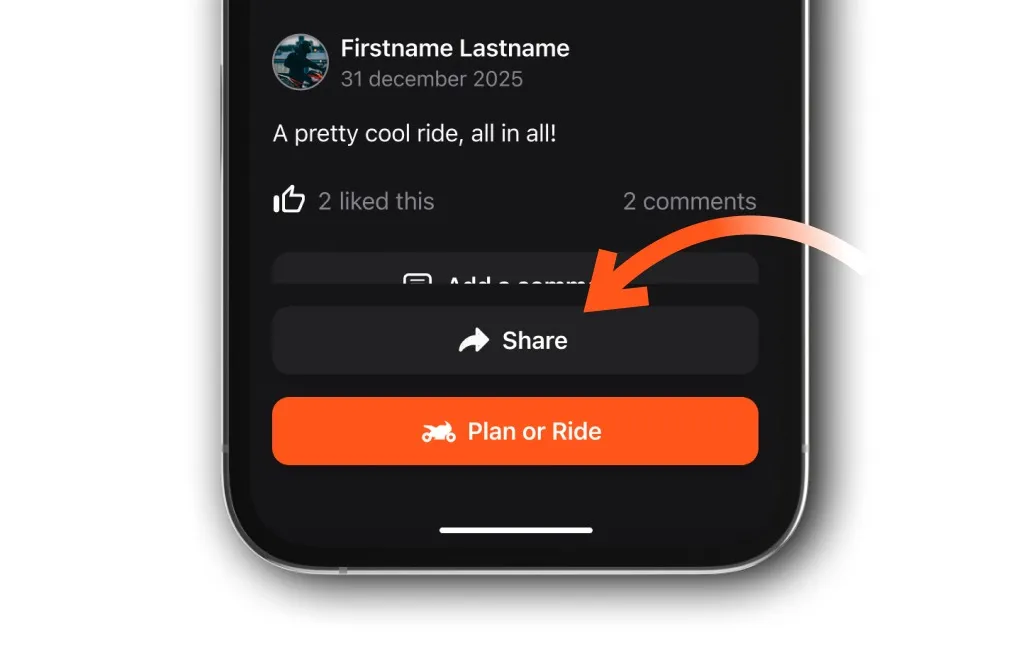
Tap Share at the bottom of the route.
-
Tap Export GPX.

-
Choose where to send or save the file.
Where GPX files can come from
Detecht imports GPX files from many route planners and services, including:
- Garmin Desktop App
- MapSource
- MyRouteApp
- Mapstogpx.com
- Kurviger
- Calimoto
- TomTom MyDrive
- Stegra.io
- REVER
- RouteYou
- GPX.studio
- ChatGPT
Files from other sources may work too.
Updated