Use Detecht with Android Auto
Sign in to Detecht on your phone, connect it to Android Auto and open Detecht from the app launcher on your display.
With Detecht on Android Auto, you can navigate your routes, see your tracked ride and report hazards from your bike's display.
What you need
- An Android phone with Detecht installed, signed in to your Detecht account
- A motorcycle or device that supports Android Auto
- Location (GPS) turned on on your phone
- An internet connection
Open Detecht on Android Auto
- Make sure you're signed in to Detecht on your phone.
- Connect your phone to your Android Auto device. Its manual tells you how.
- Open Detecht from the app launcher on your Android Auto display.
If you aren't signed in, the display asks you to continue on your phone. Sign in to Detecht on your phone, then go back to the display.
What the map shows
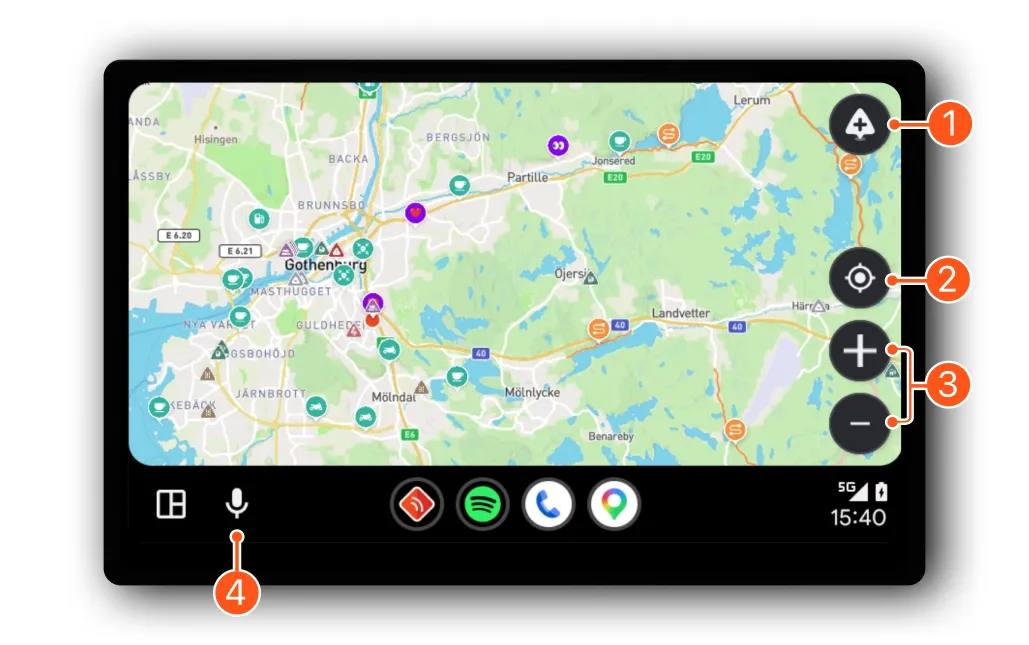
Detecht opens in free ride mode: a map centered on where you are. It shows:
- curvy roads
- motorcycle road segments
- motorcycle Places
- your favorites
- hazards reported by other riders
The controls on the display:
- Hazards: report a hazard.
- Re-center: move the map back to where you are. It appears when you tap the map.
- + and –: zoom in and out.
- Microphone: start navigation by voice.
Navigate a route
Choose a saved route or plan a new one in the Detecht app on your phone. Navigation opens on your Android Auto display by itself.
To navigate a ride you tracked:
- Open the ride in the Detecht app on your phone.
- Tap Plan Ride.
- Choose Convert to Route.
- Start navigation.
While navigating:
- The map zooms in and out with your speed, so upcoming turns are easier to follow.
- To stop navigating, tap X. Detecht keeps tracking your ride.
- When you arrive, a notification lets you end navigation.
Navigate by voice
- Tap the microphone icon.
- Say where you want to go, for example "Navigate to…" or "Drive to…". Detecht finds the destination and shows a route.
- Tap Navigate to start turn-by-turn directions.
The route uses the road type you last chose in the app.
Track a ride
Start, pause and stop tracking from the Detecht app on your phone. Your ride shows on the Android Auto display as you go.
Hazards
- Report a hazard: tap the Hazards button, then choose the type of hazard. It's marked where you tapped the button and shared with other riders.
- Get warned: as you approach a reported hazard, an alert shows its type and how long ago it was reported. It closes after a short time, or tap OK.
Settings
Distance units (kilometers or miles) and voice guidance follow your settings in the Detecht app on your phone.
If something isn't working
- Detecht isn't in Android Auto: update Detecht to the latest version and check that Android Auto is set up on your phone.
- The display asks you to sign in: sign in to Detecht on your phone, then open Detecht again on the display.
- The map doesn't load: check that your phone has an internet connection.
- Your location doesn't show: turn on location (GPS) on your phone.
- No hazard warnings: warnings show only when you're close to a reported hazard. Zoom in on the map to see hazard markers.
Updated