Use Detecht with Apple CarPlay
Connect your iPhone to your bike's CarPlay display and open Detecht there to track rides, navigate your planned routes and report hazards.
On CarPlay, Detecht can:
- track your rides
- plan a new route to a destination
- navigate your planned routes
- warn you of hazards and let you report them
- change a few settings
For setting up and using CarPlay itself, see Apple's CarPlay guide. It's written for cars, but most of it applies to motorcycles too. Your bike's manual tells you how its controls work with CarPlay, since they differ from model to model.
Put Detecht first on your CarPlay screen
- On your iPhone, open Settings, then General, then CarPlay.
- Choose your bike, then tap Customize.
- Drag Detecht to the top.
The new order shows the next time you connect your iPhone to CarPlay.
Track a ride
-
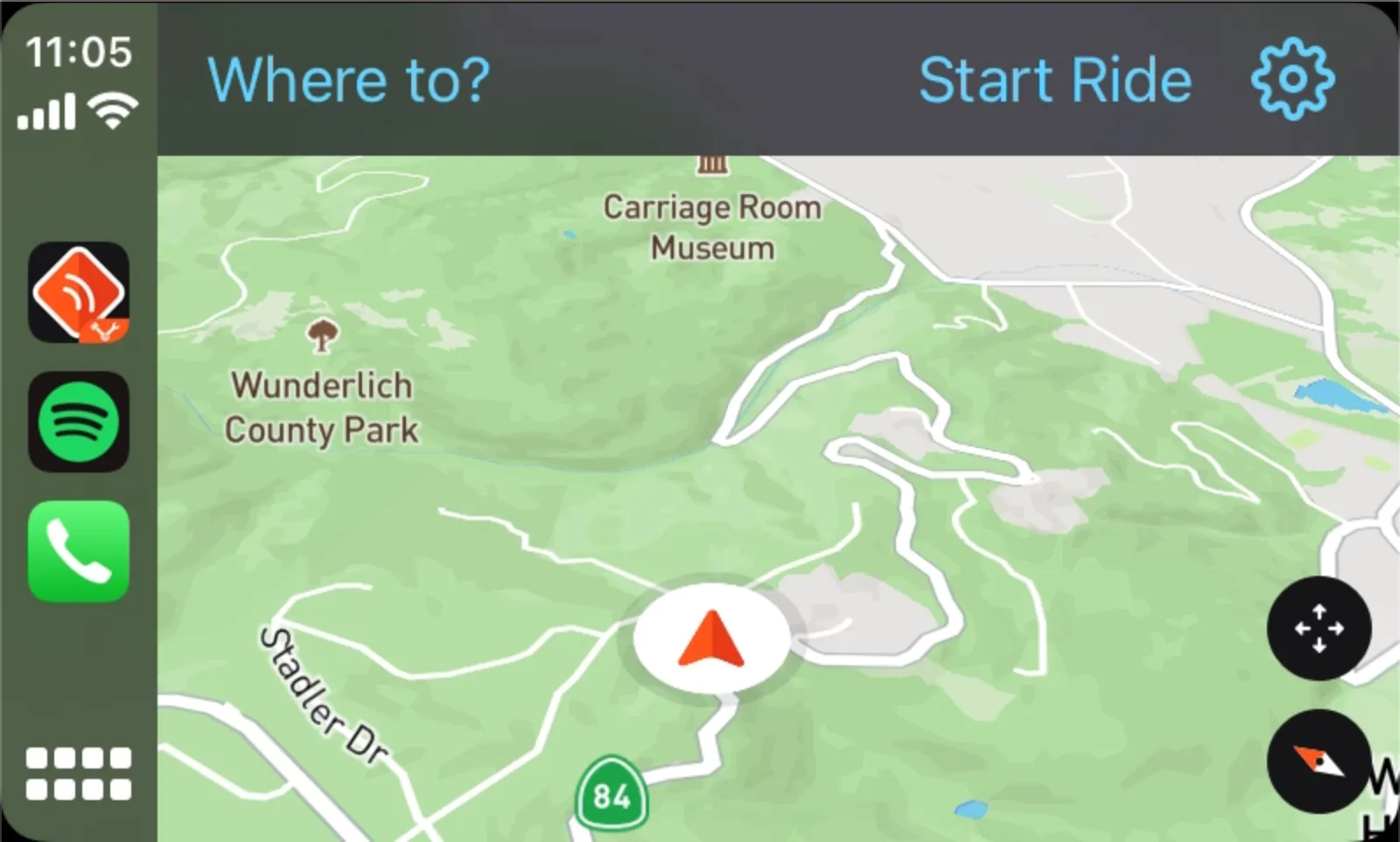
Press Start Ride at the top of the screen.
-
To pause or end the ride, touch any control so the top bar shows, then press Pause Ride. You can now resume the ride or end it.
-
After you end the ride, choose whether to save or delete it. If you choose neither, Detecht saves it.
Review your tracked ride later in the Detecht app on your phone.
Plan a route to a destination
- Press Where to? at the top of the screen.
- Choose the destination in one of three ways:
- Press the keyboard icon and type to search.
- Press the microphone icon and say where you want to go.
- Choose one of your Saved Locations. You add and remove saved locations in the app on your phone.
- To change the road type (Curvy, Avoid Highway or Fast), press Route options in the trip preview. Curvy is part of Premium.
- Press Navigate.
You can't add stops to a route on CarPlay. For a route with stops, plan it in the app and save it, then navigate it as a planned route.
Navigate a planned route
- Press Where to? at the top of the screen.
- Press Planned Routes. You see the routes you planned and saved in the app.
- Press the route you want to ride. A trip preview shows.
- Press Navigate.
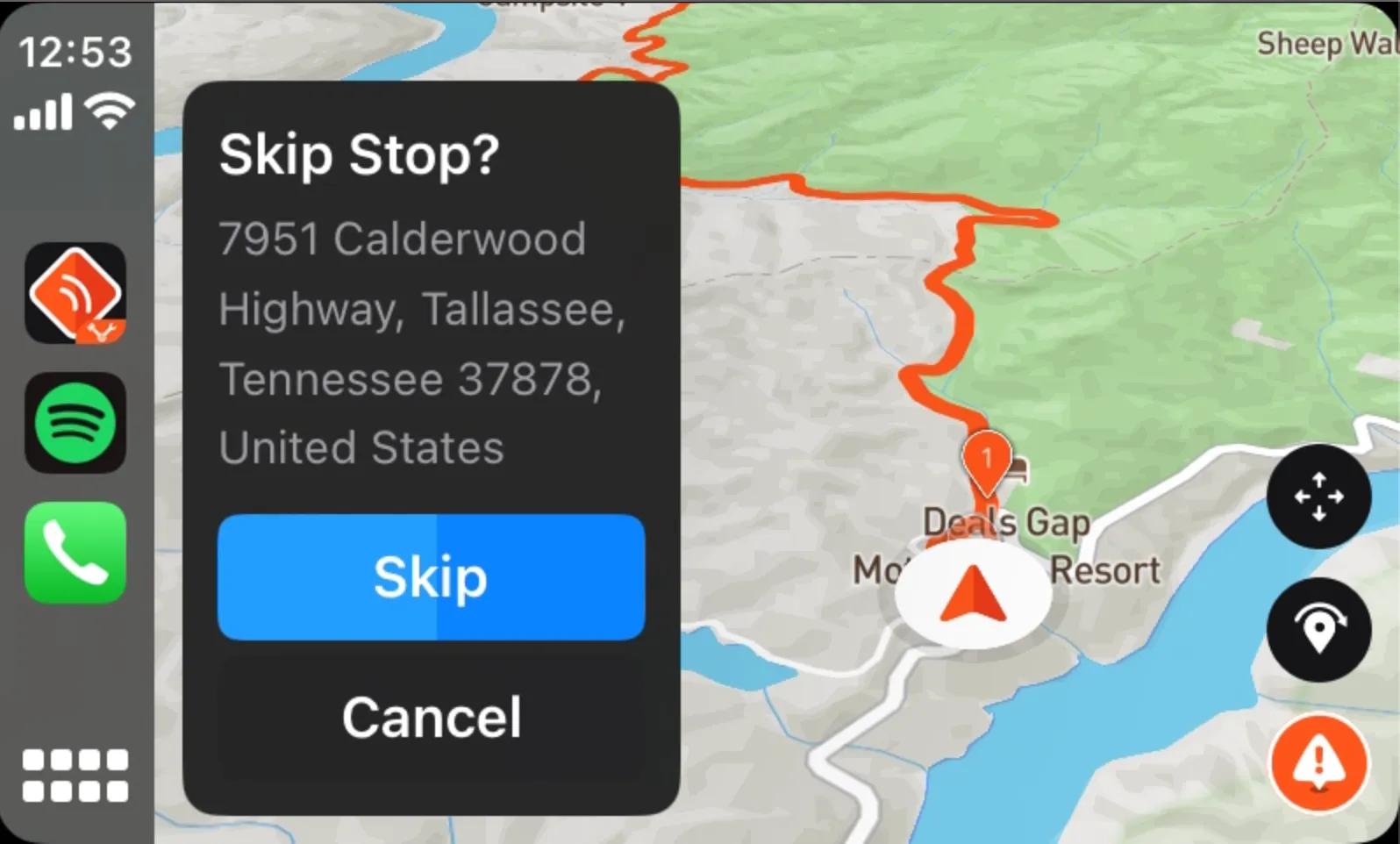
If the route has stops, you can skip the next one: press the skip stop icon, then Skip, or Cancel to keep it. If you do neither, the stop is skipped after a moment.
Hazards
To turn hazard warnings on or off, use the app on your phone. You can't change it on CarPlay.
- Report a hazard: press the orange report button, then choose the type of hazard.
- Get warned: Detecht first warns you of a hazard 500 m before you reach it.
- Confirm a hazard: when you reach it, choose Still there or Not there. If you choose neither, Detecht chooses Still there when the countdown ends.
Settings
On CarPlay you can change:
- the map style
- the volume of navigation and hazard announcements
- whether generated routes avoid tolls, ferries and unpaved roads
Change the other settings in the Detecht app on your phone. They carry over to CarPlay.
Updated