


How to use Detecht on Android Auto
Use Detecht with Android Auto to navigate your routes, track rides, and report hazards directly from your Android Auto display.
Getting Started
1. Make sure Detecht is installed on your phone and that you are signed in.
2. Connect your phone to your Android Auto device (See your Android Auto device Manual.)
3. Open Detecht from the Android Auto app launcher on your Android Auto display.
If you are not signed in, a message will appear asking you to continue on your phone. Open the app on your phone, sign in, and then return to your car display.
Free ride mode
When you open Detecht on Android Auto, it starts in Free ride mode. This is an interactive map centered on your current location.
Feature overview
- Curvy map overlay
- Motorcycle Road Segments
- Motorcycle Places
- Your saved Favorites
- Hazards reported by other riders
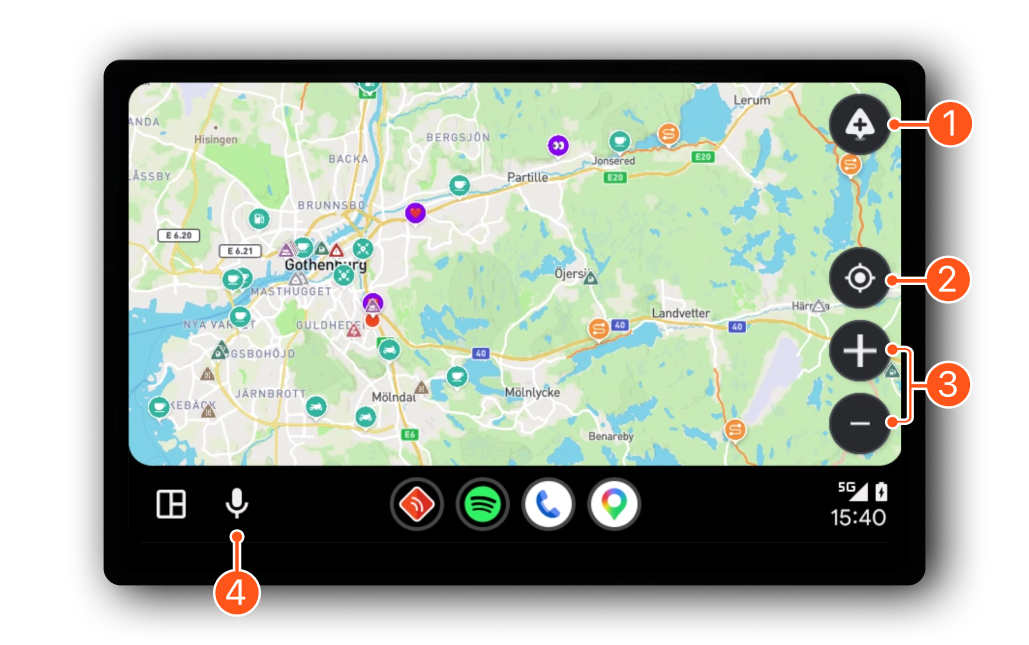
Controls on your Android Auto Device:
1. Report Hazards - Tap the Hazards button to quickly report hazards while riding.'
2. Re-center - Return the map view to your current location. (Revealed when you tap on the map)
3. Zoom controls - Use the + and – buttons to adjust the map view.
4. Microphone - Start voice navigation directly from your Android Auto device.
Navigating Routes
Select a saved route or create a new route in the Detecht app on your phone. Navigation will automatically open on your Android Auto display.
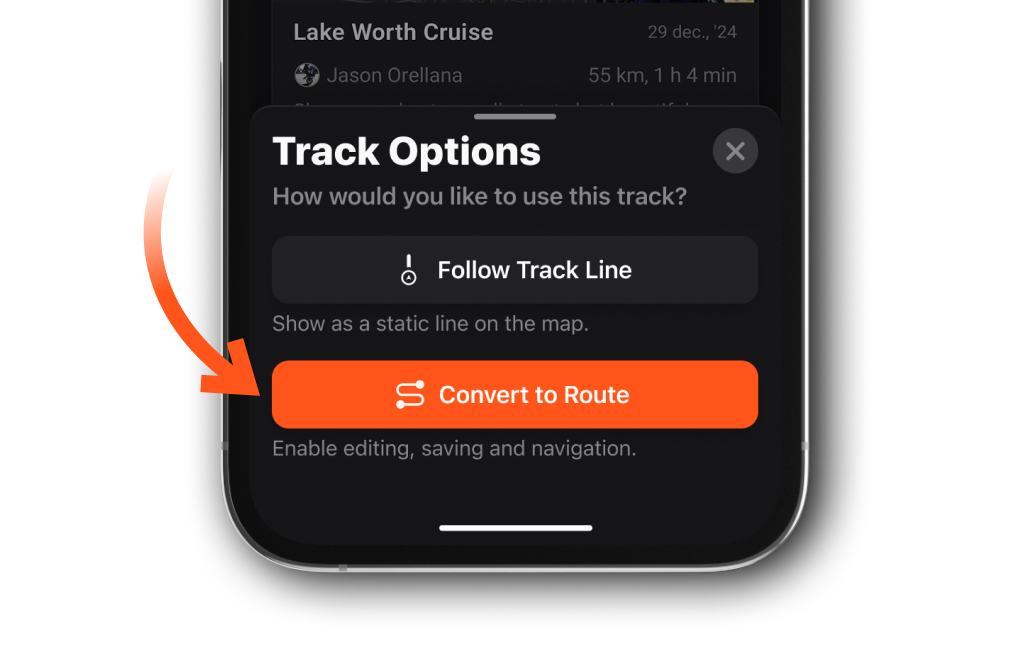
To navigate a previously tracked ride:
1. Open the ride in the Detecht mobile app
2. Tap Plan Ride
3. Select Convert to Route
4. Start navigation
To abort navigation, tap the X button. Detecht will automatically continue tracking your ride.
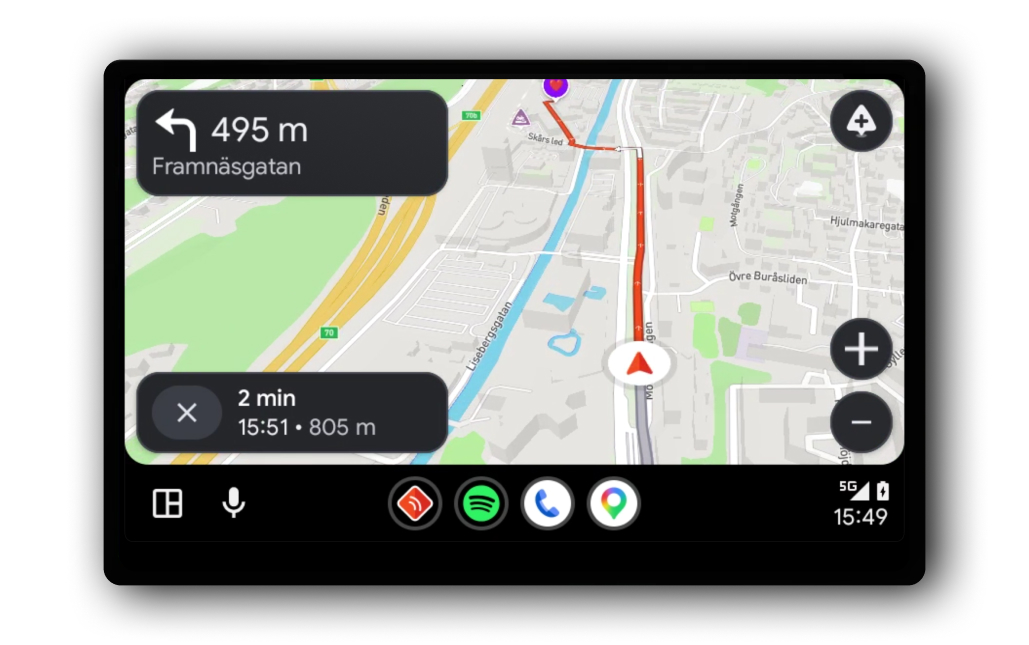
The map automatically adjusts zoom level based on your speed to make upcoming turns easier to follow.
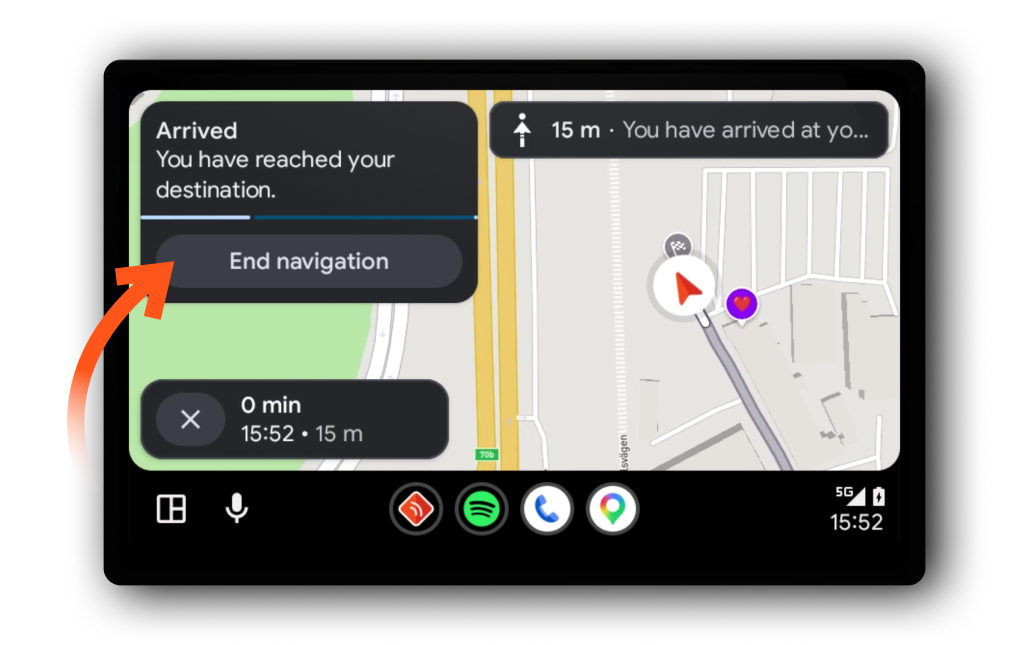
When you arrive at your destination, a notification appears where you can end navigation.
Navigate using Voice Commands
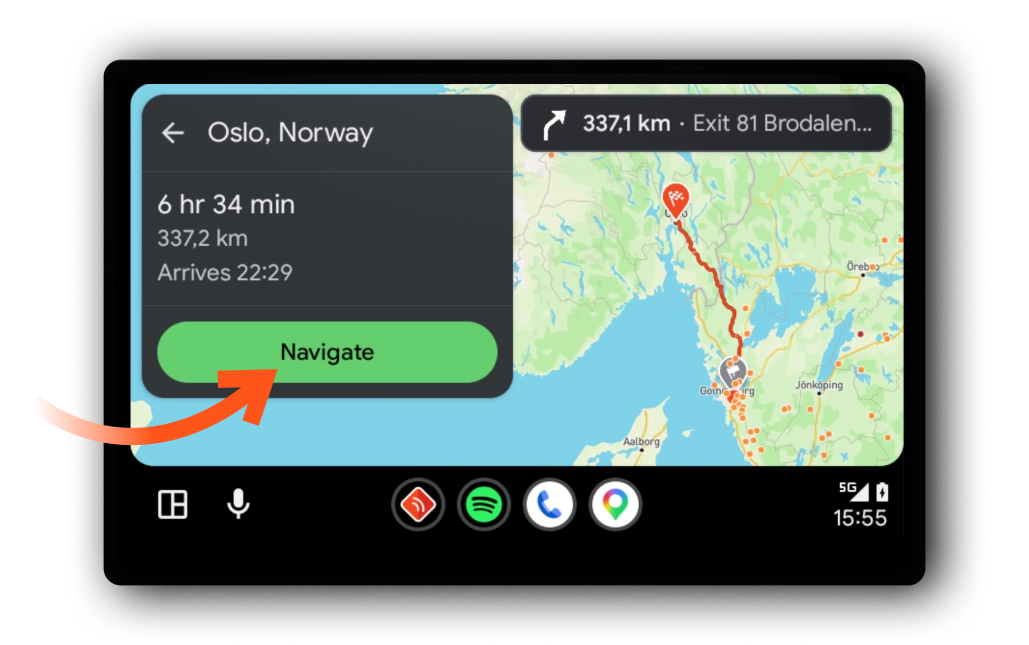
You can also generate a new route directly from your Android Auto device using voice commands. Tap the microphone icon and say where you want to go, for example: “Navigate to…” or “Drive to…”. Detecht will search for your destination and display a route directly on your Android Auto screen. Tap Navigate to begin turn-by-turn guidance. Your selected routing type will follow the last route option saved in the app.
Tracking Rides
To track a ride, start tracking from the Detecht app on your phone. Your route is displayed in real time on your Android Auto screen.
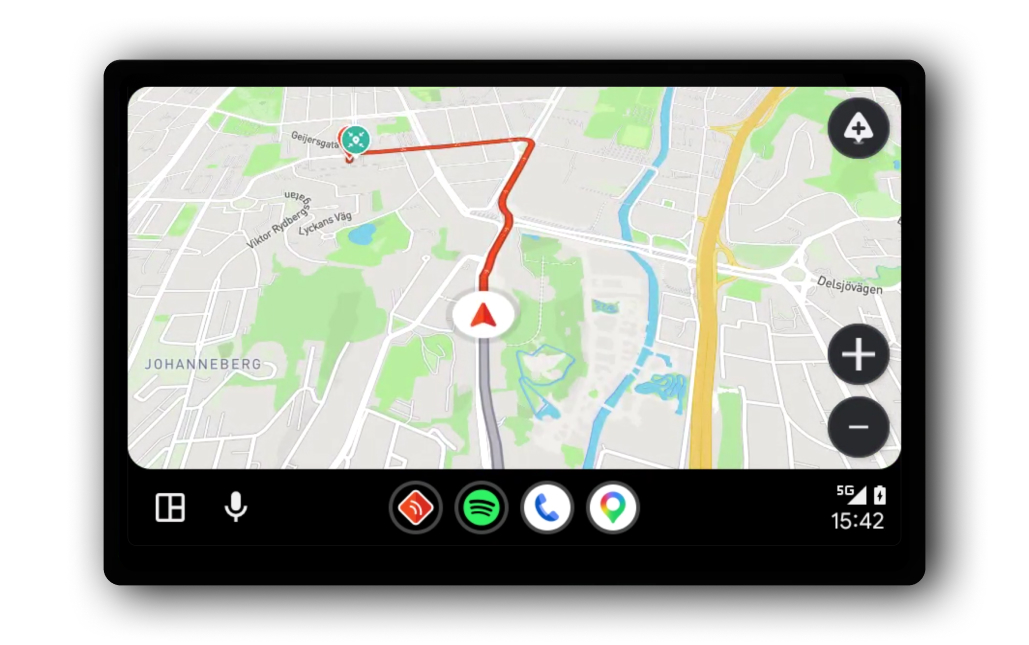
All tracking controls such as start, pause, and stop are handled from your phone.
Reporting Hazards
You can report hazards at any time using the hazard button on the screen.
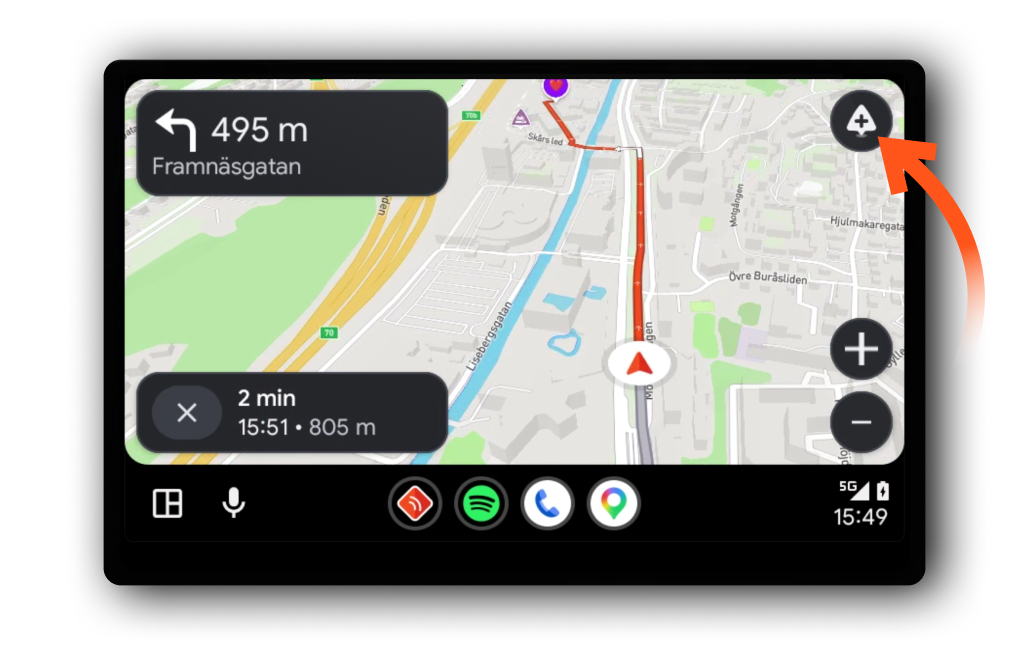
Tapping Hazards Button will allow you to specify what type of hazard you encountered.
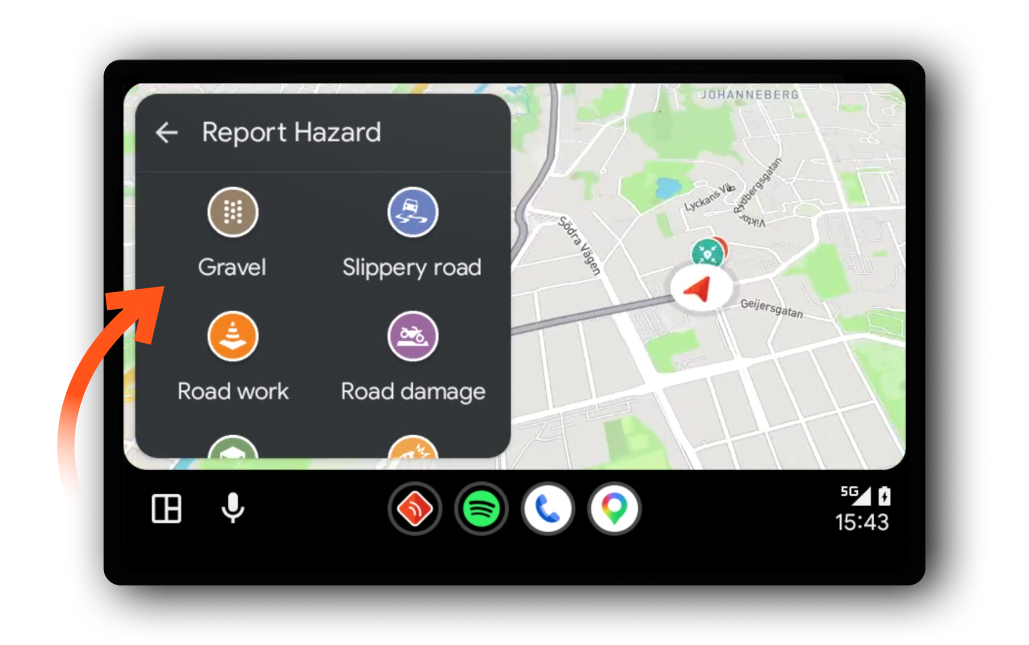
After reporting a hazard, it is shared with other riders and marked at the location where you tapped the report hazard button.
Hazard Warnings
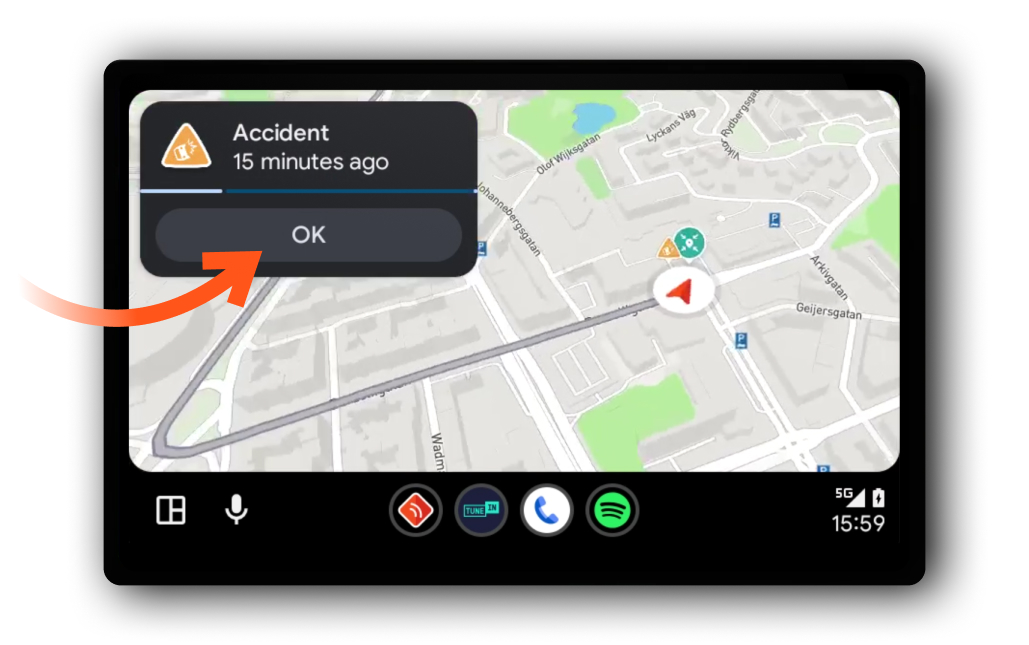
When approaching a reported hazard, an alert appears on your screen showing the type of hazard and how long ago it was reported. The alert disappears automatically after a short time, or you can dismiss it manually by tapping OK.
Settings
Map preferences such as distance units (kilometers or miles), and voice guidance carry over from your Detecht phone app settings.
Troubleshooting
If something is not working as expected, try the following:
Requirements
To use Detecht with Android Auto, you need:
- An Android phone with the Detecht app installed
- A motorbike or device that supports Android Auto
- A signed-in Detecht account
- GPS/location services enabled
- Internet connection


