


Curate your own personal map with favorites
Favorites allows you to curate your own map by saving places, road segments, or custom dropped pins. Unlike static map POIs, these are personal, editable, and organized by the user to help plan trips, remember discoveries etc.
How to Save a Favorite
You can save a place already available in the app, an existing road segment, a dropped pin, or a section of a planned route (a route leg).
1. Tap the Favorite icon button in the bottom sheet when a place, segment, dropped pin, or route leg is selected.
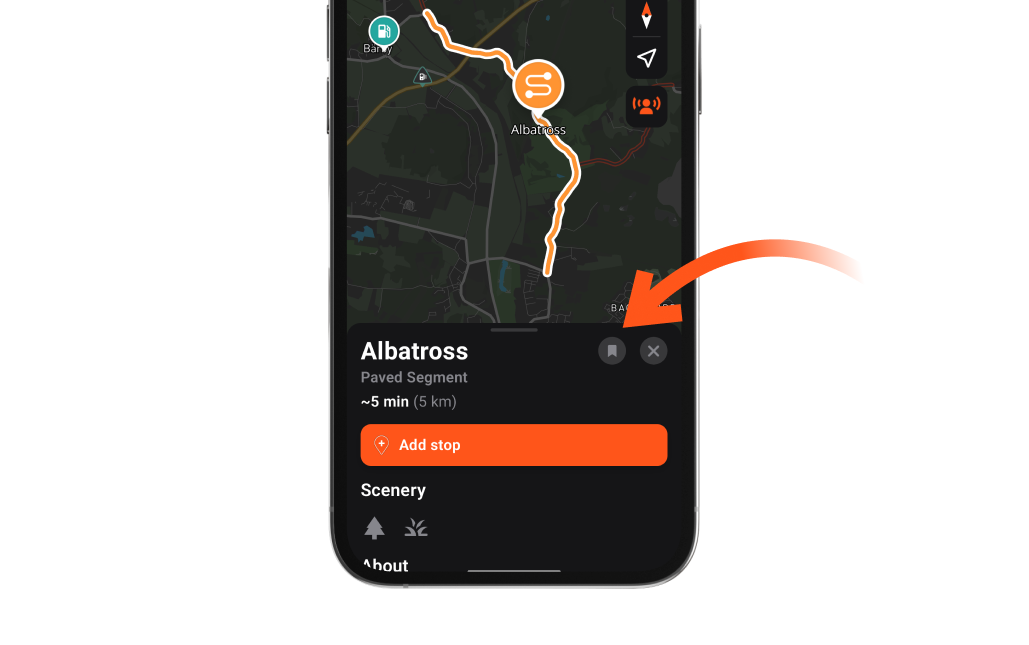
2. The Add Favorite Modal opens.
3. Customize your favorite by adding a Name, Notes, or a Tag.
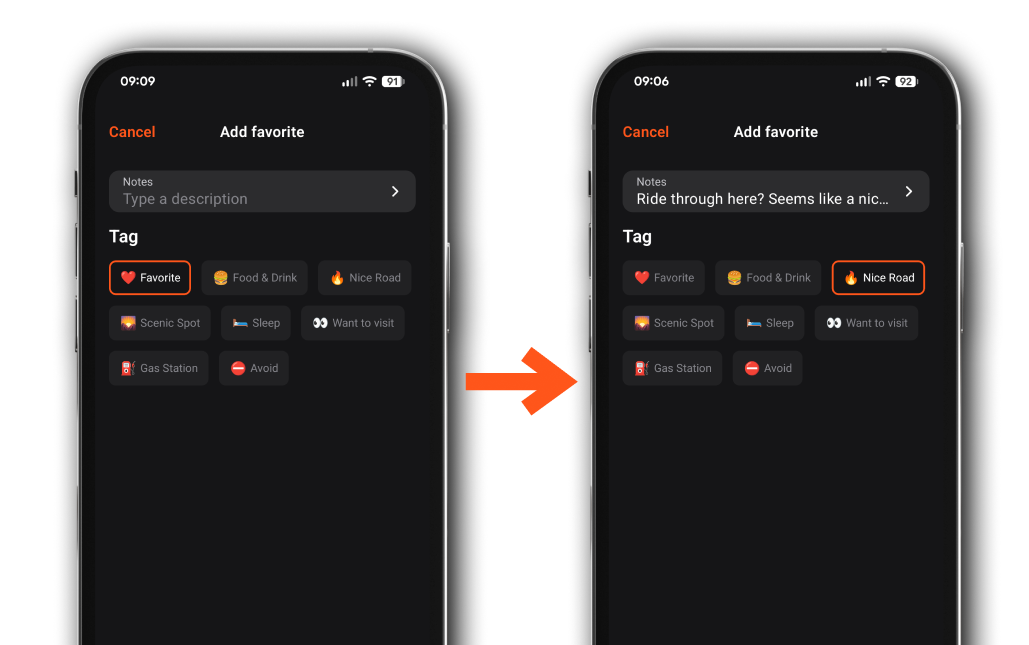
- Name: For route legs and dropped pins, you can specify a name.
- Notes: Use the inline multi-line text field for descriptions (e.g., "Great sandwiches").
- Tags: You can optionally set a tag from a selection of predefined tags for the favorite. Assigning a tag will make it more recognizable on the map.
4. Tap Save Favorite.
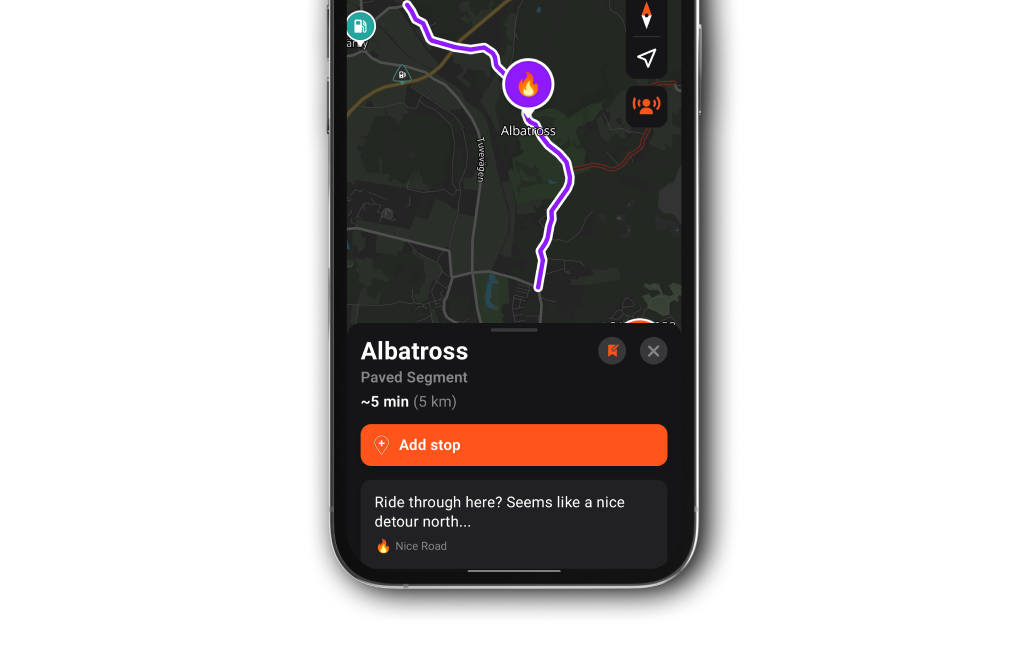
5. The modal closes, the Favorite icon button becomes active, and a Favorite Card is added to the top of the bottom sheet.
Viewing Your Favorites
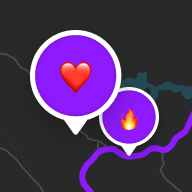
As long as you've toggled the layer visibility on in map settings, the favorites are shown as purple map markers on the map, decorated with their tag emoji. When a map item is saved, its favorite card, along with any notes and tag, appears towards the top of the bottom sheet, just below the main navigation button(s).
Editing and Deleting
If you wish to update your favorite or remove it altogether:
1. Tap the Favorite icon button in the bottom sheet to open the "Edit Favorite" modal.

2. Tap delete button towards the bottom of the modal.


